Simple 3D Shading using Metal

In the previous article, you learned how to render a 3D object. However, the object lacked depth perception. In computer graphics, as in art, shading depicts depth perception by varying the level of darkness.

Before I start, I recommend you to read the prerequisite materials listed below:

Prerequisite:

Shading

As mentioned in the introduction, shading depicts depth perception by varying the level of darkness on an object. For example, the image below shows a 3D model without any depth perception:

Whereas, the image below shows the 3D model with shading applied:

The shading levels are dependent on the incident angle between the surface and light rays. For example, an object will have different shading when a light ray hits the object's surface at a 90-degree angle than when light rays hit the surface at a 5-degrees angle. The image below depicts this behavior; the shading effects vary depending on the angle between the light source and the surface.

We can simulate this natural behavior by computing the Dot-Product between the light rays and a surface's Normal vector. When a light source vector s is parallel and heading in the same direction as the normal vector n, the dot product is 1, meaning that the surface location is fully lit. Recall, the dot product ranges between [-1.0,1.0].

As the light source moves, the angle between vectors s and n changes, thus changing the dot product value. When this occurs, the shading levels also changes.

Shading is implemented either in the Vertex or Fragment Shaders (Functions), and it requires the following information:

  • Normal Vectors
  • Normal Matrix
  • Light Position
  • Model-View Space

Normal vectors are vectors perpendicular to the surface. Luckily, we don't have to compute these vectors. This information is supplied by any 3D modeling software such as Blender.

The Normal Matrix is extracted from the Model-View Space transformation and is used to transform the normal vectors. The Normal Matrix requires being transposed and inverted before they can be used in shading.

The light position is the location of the light source in the scene. The light position must be transformed into View Space before you can shade the object. If you do not, you may see weird shading.

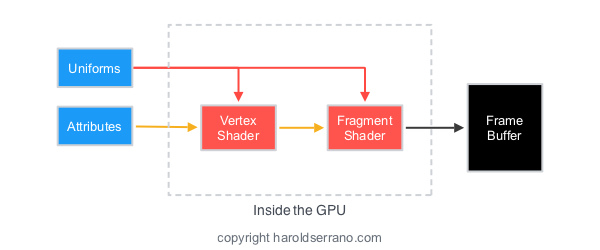
We will implement shading in the Vertex Shader (Function). In our project, the Normal Vectors will be passed down to the vertex shader as attributes. The Normal Matrix and light position will be passed down as uniforms.

Setting Up the Application

Let's apply shading to a 3D model.

By now, you should know how to set up a Metal Application and how to render a 3D object. If you do not, please read the prerequisite articles mentioned above. In this article, I will focus on setting up the Shaders.

For your convenience, the project can be found here. Download the project so you can follow along.

Note: The project is found in the "shading3D" git branch. The link should take you directly to that branch.

Let's start,

By now, you should know how to pass attribute and uniform data to the GPU using Metal, so I will not go into much detail.

Also, the project is interactive. As you swipe your fingers across the screen, the x and y coordinates of the light source will change. Thus a new shading value will be computed every time you touch the screen.

Open up the "ViewController.mm" file.

The project contains a method called "updateTransformation" which is called before each render pass. In the "updateTransformation" method, we are going to compute the Normal Matrix space and transform the new light position into the Model-View space. This information is then passed down to the vertex shader.

Updating Normal Matrix Space

The Normal Matrix space is extracted from the Model-View transformation. Before each render pass, the Normal Matrix must be transposed and inverted as shown in the snippet below:

//get normal matrix
matrix_float3x3 normalMatrix={modelViewTransformation.columns[0].xyz,modelViewTransformation.columns[1].xyz,modelViewTransformation.columns[2].xyz};

normalMatrix=matrix_transpose(matrix_invert(normalMatrix));

//load the NormalMatrix into the MTLBuffer
normalMatrixUniform=[mtlDevice newBufferWithBytes:(void*)&normalMatrix length:sizeof(normalMatrix) options:MTLResourceOptionCPUCacheModeDefault];

Updating Light Position

The position of the light source is transformed into the View space before each render pass. See the snippet below:

//light position
vector_float4 lightPosition={xPosition*5.0,yPosition*5.0+10.0,-5.0,1.0};

// transform the light position
lightPosition=matrix_multiply(viewMatrix, lightPosition);

// load the light position into the MTLBuffer
mvLightUniform=[mtlDevice newBufferWithBytes:(void*)&lightPosition length:sizeof(lightPosition) options:MTLResourceCPUCacheModeDefaultCache];

Setting up the Shaders

Open up the "MyShader.metal" file.

We will implement shading in the Vertex Shader. The Vertex Shader (Function) receives the following information in its argument:

  • Normal Vectors (as attributes)
  • Model-View space
  • Normal Matrix Space
  • Light Position

To apply shading, we transform the Normal Vectors into Normal Matrix space as shown below:

//2. transform the normal vectors by the normal matrix space
float3 normalVectorInMVSpace=normalize(normalMatrix*normal[vid].xyz);

Since we need to compute the light ray direction, we transform the model's vertices into the same space as the Light Position, i.e., we transform it into the Model-View space. Once this operation is complete, we can compute the light ray direction by subtracting the light position and the surface vertices. See the snippet below:

//3. transform the vertices of the surface into the Model-View Space
float4 verticesInMVSpace=mvMatrix*vertices[vid];

//4. Compute the direction of the light ray betweent the light position and the vertices of the surface
float3 lightRayDirection=normalize(lightPosition.xyz-verticesInMVSpace.xyz);

With the Normal Vectors and the light ray direction, we can compute the intensity of the shading. Since the dot product ranges from [-1,1], we get the maximum value between 0 and the dot product as shown below:

//5. compute shading intensity by computing the dot product. We obtain the maximum the value between 0 and the dot product

float shadingIntensity=max(0.0,dot(normalVectorInMVSpace,lightRayDirection));

Next, we multiply the shading intensity value, by a particular light color. The shading color is then passed down to the fragment shader (function).

//6. Multiply the shading intensity by a light color

float4 shadingColor=shadingIntensity*lightColor;

//7. Pass the shading color to the fragment shader

vertexOut.color=shadingColor;

The fragment shader is quite simple. It applies the shading color to the 3D model.

And that is it. Build the project and swipe your finger across the screen. The 3D object will be shaded differently depending on the position of the light source.

Note: As of today, the iOS simulator does not support Metal. You need to connect your iPad or iPhone to run the project.

Hope this helps

Rendering 3D objects in Metal

Let's learn how to render 3D objects using the Metal API. Before I start, I recommend you to read the prerequisite materials listed below:

Prerequisite:

Coordinate Systems

In Computer Graphics, we work with several coordinate systems. The most popular coordinate systems are:

  • Object Space
  • World Space
  • Camera (view) Space
  • Perspective & Orthogonal Projection Spaces

Object Space

In Object Space, the vertices composing the mesh are defined relative to the mesh origin point, usually (0,0,0).

Screen Shot 2016-12-28 at 10.12.05 AM.png

World Space

In World Space, the mesh's position is defined relative to the world's origin point. In this instance the object is located five units along the x-direction from the world's origin point.

Camera Space

In Camera Space, the world's position is defined relative to the camera's (view) origin point.

Perspective & Orthogonal Projection Space

There are two ways to set up a Projection Space. It can be configured with an Orthogonal-Projection, thus producing a 2D image on the framebuffer, as shown below:

Or it can be set with a Perspective Projection, thus generating a 3D image on the framebuffer, as illustrated below:

Transformations

Matrices allow you to transform an object, such as rotating or scaling the object. However, matrices also enable you to transform coordinate systems.

To render a 3D object, you must transform an object's coordinate system into the following coordinate systems before it ends up in the framebuffer:

  • World-Space Transformation
  • Camera-Space Transformation
  • Perspective-Projective Space Transformation

Mathematically, you transform coordinate systems by multiplying the space matrices.

World-Space Transformation

In this transformation, the World's matrix transforms the object's coordinate system. The object's position is now defined relative to the world's origin.

This transformation is called Model-World Transformation or Model-Transformation.

Camera-Space Transformation

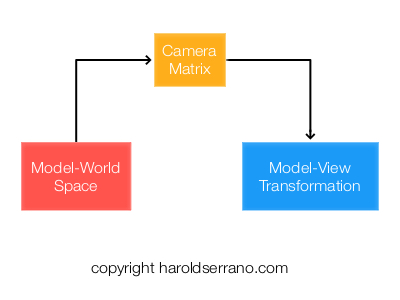
In this step, the Camera matrix transforms the Model-World's coordinate system. The world's position is now defined relative to the camera's origin.

This transformation is known as the Model-View Transformation

Perspective-Projection Transformation

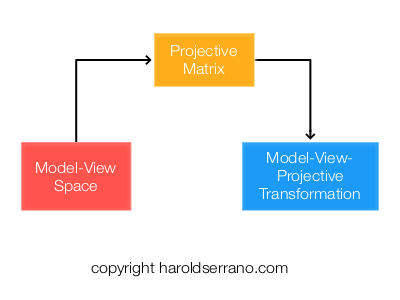
The Perspective projection matrix transforms the Model-View coordinate system, thus creating the illusion of depth.

This transformation is known as the Model-View-Projection transformation.

And that is it. One of the concepts that differ between rendering a 2D vs. a 3D object are the transformations performed.

Setting up the Application

Let's render a simple 3D cube using Metal.

By now, you should know how to set up a Metal Application and how to render a 2D object. If you do not, please read the prerequisite articles mentioned above. In this article, I will focus on setting up the transformations and shaders.

For your convenience, the project can be found here. Download the project so you can follow along.

Note: The project is found in the "rendering3D" git branch. The link should take you directly to that branch.

Let's start,

Open up the "ViewController.m" file.

Setting up the Cube vertices and indices

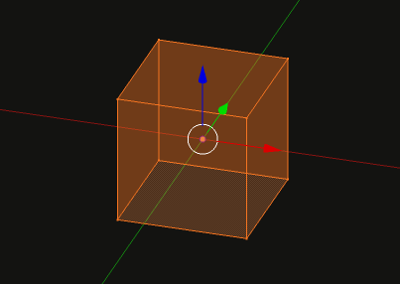
A cube is composed of eight vertices as shown below:

The vertices representing the cube is defined as follows:

static float cubeVertices[] =
{
    -0.5, 0.5, 0.5,1,
    -0.5,-0.5, 0.5,1,
    0.5,-0.5, 0.5,1,
    0.5, 0.5, 0.5,1,

    -0.5, 0.5,-0.5,1,
    -0.5,-0.5,-0.5,1,
    0.5,-0.5,-0.5,1,
    0.5, 0.5,-0.5,1,

};

In computer graphics, a mesh is a collection of vertices, edges, and faces that define the shape of a 3D object. The most popular type of polygon primitive used in computer graphics is a Triangle primitive.

Before you render an object, it is helpful to Triangularize the object. Triangularization means to break down the mesh into sets of triangles as shown below:

triangularization.png

It is also helpful to obtain the relationship between a vertex and a triangle. For example, a vertex can be part of several triangles. The relationship between a vertex and a triangle primitive is known as "Indices," and they inform the Primitive Assembly, in the Rendering Pipeline, how to connect the triangle primitives.

The "indices" we will provide to the rendering pipeline are defined below:

const uint16_t indices[] = {
    3,2,6,6,7,3,
    4,5,1,1,0,4,
    4,0,3,3,7,4,
    1,5,6,6,2,1,
    0,1,2,2,3,0,
    7,6,5,5,4,7
};

Declaring Attribute and Uniform data

In Metal, An MTLBuffer represents an allocation of memory that can contain any type of data. We will use an MTLBuffer to represent vertex and indices attribute data as shown below:

//Attributes
id<MTLBuffer> vertexAttribute;

id<MTLBuffer> indicesBuffer;

We will also use an MTLBuffer to represent our Model-View-Projection uniform:

//Uniform
id<MTLBuffer> mvpUniform;

Loading attribute data into an MTLBuffer

To load data into an MTLBuffer, Metal provides a method called "newBufferWithBytes." We are going to load the cube vertices and indices into the vertexAttribute and indicesBuffer as shown below. This is shown in the "viewDidLoad" method, Line 6.

//6. create resources

//load the data attribute into the buffer
vertexAttribute=[mtlDevice newBufferWithBytes:cubeVertices length:sizeof(cubeVertices) options:MTLResourceOptionCPUCacheModeDefault];

//load the index into the buffer
indicesBuffer=[mtlDevice newBufferWithBytes:indices length:sizeof(indices) options:MTLResourceOptionCPUCacheModeDefault];

Updating the Transformations

The next step is to compute the space transformations. I could have set up the project to show a static 3D object by only calculating the Model-View-Projection transformation in the "viewDidLoad" method. However, we are going to go a step beyond.

Instead, of producing a static 3D object, we are going to rotate the 3D object as you swipe your fingers from left to right. To accomplish this effect, you will compute the MVP transformation before every render pass.

The project contains a method called "updateTransformation" which is called before each render pass. In the "updateTransformation" method, we are going to rotate the model, and transform its space into a World, Camera, and Projective Space.

Setting up the Coordinate Systems

The model will be rotated as you swipe your fingers. This rotation is accomplished through a rotation matrix. The resulting matrix corresponds to a new model space.

//Rotate the model and produce the model matrix
matrix_float4x4 modelMatrix=matrix_from_rotation(rotationAngle*M_PI/180, 0.0, 1.0, 0.0);

The world's coordinate system will not be translated nor rotated. Mathematically, this coordinate system is represented by an Identity matrix.

//set the world matrix to its identity matrix.i.e, no transformation. It's origin is at 0,0,0
matrix_float4x4 worldMatrix=matrix_identity_float4x4;

The Camera will be positioned three units out into the z-axis.

//Set the camera position in the z-direction
matrix_float4x4 viewMatrix=matrix_from_translation(0.0, 0.0, 3.0);

The Projection-Perspective matrix will be set with a field of view of 45 degrees and with an aspect ratio determined by the width and height of your device's screen.

//compute the projective-perspective matrix
float aspect=self.view.bounds.size.width/self.view.bounds.size.height;

matrix_float4x4 projectiveMatrix=matrix_from_perspective_fov_aspectLH(45.0f * (M_PI / 180.0f), aspect, 0.1f, 100.0f);

Space Transformation

Once we have the coordinate systems, we can transform them. We do this by multiplying their respective matrices.

The snippet below shows the different transformations

//Transform the model into the world's coordinate space
matrix_float4x4 modelWorldTransformation=matrix_multiply(worldMatrix, modelMatrix);

//Transform the Model-World Space into the camera's coordinate space
matrix_float4x4 modelViewTransformation=matrix_multiply(viewMatrix, modelWorldTransformation);

//Transfom the Model-View Space into the Projection space
matrix_float4x4 modelViewProjectionTransformation=matrix_multiply(projectiveMatrix, modelViewTransformation);

Finally, we load the "ModelViewProjection" transformation into the "mvpUniform" buffer.

//Load the MVP transformation into the MTLBuffer
mvpUniform=[mtlDevice newBufferWithBytes:(void*)&modelViewProjectionTransformation length:sizeof(modelViewProjectionTransformation) options:MTLResourceOptionCPUCacheModeDefault];

Linking Resources to Shaders

In the "renderPass" method, we are going to link the vertices attributes and MVP uniforms to the shaders. The linkage is shown in lines 10c and 10d.

//10c. set the vertex buffer object and the index for the data
[renderEncoder setVertexBuffer:vertexAttribute offset:0 atIndex:0];

//10d. set the uniform buffer and the index for the data
[renderEncoder setVertexBuffer:mvpUniform offset:0 atIndex:1];

Note that we set the "vertexAttribute" at index 0 and the "mvpUniform" at index 1. These values will be linked to the shader's argument.

Setting the Drawing command

Earlier I talked about indices and how they inform the rendering pipeline how to assemble the triangle primitives. Metal provides these indices to the rendering pipeline through the Drawing command as shown below:

//10e. Set the draw command
[renderEncoder drawIndexedPrimitives:MTLPrimitiveTypeTriangle indexCount:[indicesBuffer length]/sizeof(uint16_t) indexType:MTLIndexTypeUInt16 indexBuffer:indicesBuffer indexBufferOffset:0];

Setting up the Shaders (Functions)

Open the "MyShader.metal" file.

Take a look at the function "vertexShader." Its argument receives the vertices at buffer 0 and the "mvp" transformation at buffer 1.

vertex float4 vertexShader(device float4 *vertices [[buffer(0)]], constant float4x4 &mvp [[buffer(1)]],uint vid [[vertex_id]]){

    //transform the vertices by the mvp transformation
    float4 pos=mvp*vertices[vid];

    return pos;

}

Within the function, the vertices of the cube get transformed by the "mvp" transformation matrix.

The "fragmentShader" function is simple. It sets the rectangle to the color red.

fragment float4 fragmentShader(float4 in [[stage_in]]){

    //set color fragment to red
    return float4(1.0,0.0,0.0,1.0);

}

And that is it. Build the project. You should see a cube. Swipe your fingers and the cube should rotate.

Note: As of today, the iOS simulator does not support Metal. You need to connect your iPad or iPhone to run the project.

In the next article, I will teach you how to add shading to a 3D mesh so that it looks a lot cooler.

Hope it helps.

Rotating a 2D object using Metal

Now that you know the basics of Computer Graphics and how to set up the Metal API, it is time to learn about matrix transformations.

In this article, you are going to learn how to rotate a 2D object using the Metal API. In the process, you will learn about transformations, attributes, uniforms and their interaction with Metal Functions (Shaders).

Prerequisite:

Let's start off by reviewing Attributes, Uniforms, Transformations and Shaders.

Attributes

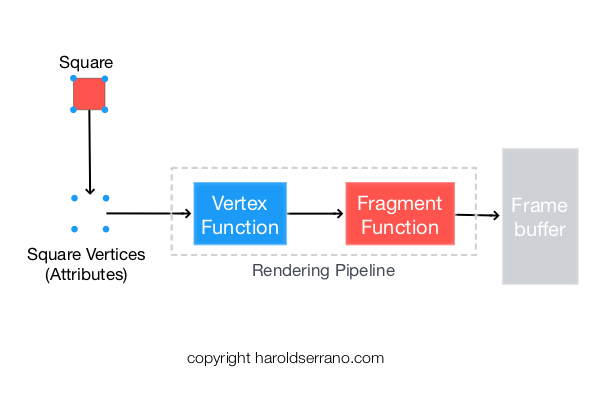
Elements that describe a mesh, such as vertices, are known as Attributes. For example, a square has four vertex attributes.

Attributes behave as inputs to a Vertex Function (Shader).

Uniforms

A Vertex Shader deals with constant and non-constant data. An Attribute is data that changes per-vertex, thus non-constant. Uniforms are data that are constant during a render pass.

Unlike attributes, uniforms can be received by both the Vertex and the Fragment functions (Shaders).

Transformations

In computer graphics, Matrices are used to transform the coordinate system of a mesh.

For example, to rotate a square 45 degrees about an axis requires a rotational matrix to transform the coordinate system of each vertex of the square.

In computer graphics, transformation matrices are usually sent as uniform data to the GPU.

Functions (Shaders)

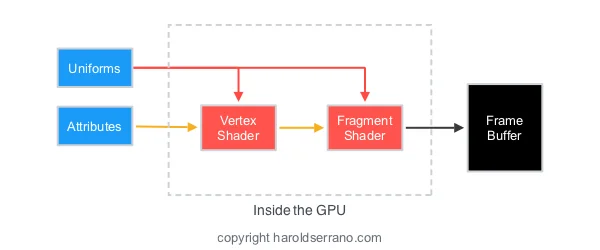
The rendering pipeline contains two Shaders known as Vertex Shader and Fragment Shader. In simple terms, the Vertex Shader is in charge of transforming the space of the vertices. Whereas, the Fragment Shader is responsible for providing color to rasterized pixels. In Metal, Shaders are referred to as Functions.

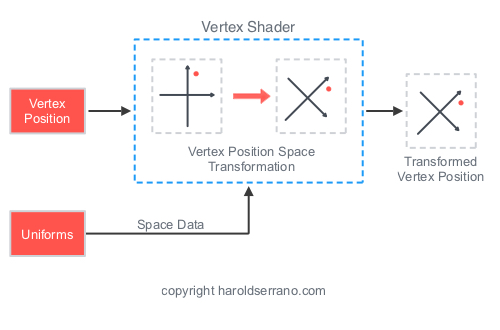
To rotate an object; you provide the attributes of the model, along with the transformation uniform, to the vertex shader. With these two set of data, the Vertex Shader can transform the space of the square during a render pass.

Setting Up the Project

By now, you should know how to set up a Metal Application. If you do not, please read the prerequisite articles mentioned above. In this article, I will focus on setting up the attributes, updating the transformation uniform and the Shaders.

For your convenience, the project can be found here. Download the project so you can follow along.

Note: The project is found in the "rotatingASquare" git branch. The link should take you directly to that branch.

Let's start,

Open up the "ViewController.m" file.

Setting up the square vertices

The vertices representing our square object is defined as follows:

static float quadVertexData[] =
{
    0.5, -0.5, 0.0, 1.0,
    -0.5, -0.5, 0.0, 1.0,
    -0.5,  0.5, 0.0, 1.0,

    0.5,  0.5, 0.0, 1.0,
    0.5, -0.5, 0.0, 1.0,
    -0.5,  0.5, 0.0, 1.0
};

We will use these vertices as attribute input to the GPU.

Declaring Attribute and Uniform data

In Metal, An MTLBuffer represents an allocation of memory that can contain any type of data. We will use an MTLBuffer to represent attribute and uniform data as shown below:

//Attribute
id<MTLBuffer> vertexAttribute;

//Uniform
id<MTLBuffer> transformationUniform;

We will also declare a matrix variable representing our rotation matrix and a float variable representing the rotation angle.

//Matrix transformation
matrix_float4x4 rotationMatrix;

//rotation angle
float rotationAngle;

Loading attribute data into an MTLBuffer

To load data into an MTLBuffer, Metal provides a method called "newBufferWithBytes." We are going to load the square vertices into the vertexAttribute MTLBuffer as shown below. This is shown in the "viewDidLoad" method, Line 6.

//load the data attribute into the buffer
vertexAttribute=[mtlDevice newBufferWithBytes:quadVertexData length:sizeof(quadVertexData) options:MTLResourceOptionCPUCacheModeDefault];

Updating the rotation matrix

Now that we have the attributes stored in the buffer, we need to load the uniform data into its respective buffer. However, unlike the attribute data which is loaded once, we will continuously update the uniform buffer.

The project contains a method called "updateTransformation". The project calls the "updateTransformation" method before each render pass, and its purpose is to create a new rotation matrix depending on the value of "rotationAngle."

To make it a bit interactive, I set up the project to detect touch inputs. On every touch, the "rotationAngle" value is set to the touch x-coordinate value. Thus, as you touch your device, a new rotation matrix is created.

In the "updateTransformation" method, we are going to compute a new matrix rotation and load the rotation matrix into the uniform MTLBuffer as shown below:

//Update the rotation Transformation Matrix
rotationMatrix=matrix_from_rotation(rotationAngle*M_PI/180, 0.0, 0.0, 1.0);

//Update the Transformation Uniform
transformationUniform=[mtlDevice newBufferWithBytes:(void*)&rotationMatrix length:sizeof(rotationMatrix) options:MTLResourceOptionCPUCacheModeDefault];

Linking Resources to Shaders

The next step is to link the attribute and uniform MTLBuffer data to the shaders.

Metal provides a clean way to link resource data to the shaders by specifying an index value in the Render Command Encoder argument table and linking that value to the argument of shader function.

For example, the snippet below shows the attribute data being set at index 0.

//set the vertex buffer object and the index for the data
[renderEncoder setVertexBuffer:vertexAttribute offset:0 atIndex:0];

The shader vertex function, shown below, receives the attribute data by specifying in its argument the keyword "buffer()." In this instance, since we want to link the attribute data to index 0, we set the argument to "buffer(0)."

vertex float4 vertexShader(device float4 *vertices [[buffer(0)]], uint vid [[vertex_id]]){};

Ok, let's go back to our project.

We need to set the index value for our attribute and transformation uniform. To do so, we are going to use the "setVertexBuffer" method and provide an index value for each item. This is shown in the "renderPass" method starting at line 10.

//set the vertex buffer object and the index for the data
[renderEncoder setVertexBuffer:vertexAttribute offset:0 atIndex:0];

//set the uniform buffer and the index for the data
[renderEncoder setVertexBuffer:transformationUniform offset:0 atIndex:1];

Setting up the Shaders (Functions)

Open the "MyShader.metal" file.

Take a look at the function "vertexShader." Its argument receives the vertices at buffer 0 and the transformation at buffer 1. Note that the "transformation" parameter is a 4x4 matrix of type "float4x4."

vertex float4 vertexShader(device float4 *vertices [[buffer(0)]], constant float4x4 &transformation [[buffer(1)]], uint vid [[vertex_id]]){

    //Transform the vertices of the rectangle
    return transformation*vertices[vid];

}

Within the function, the vertices of the square get transformed by the "transformation" matrix.

The "fragmentShader" function is simple. It sets the rectangle to the color red.

fragment float4 fragmentShader(float4 in [[stage_in]]){

    //set color fragment to red
    return float4(1.0,0.0,0.0,1.0);

}

And that is it. Build the project and swipe your finger across the iOS device. The rectangle mesh should rotate as shown below:

Note: As of today, the iOS simulator does not support Metal. You need to connect your iPad or iPhone to run the project.

Next, I will teach you how to render 3D objects using Metal.

Hope this helps.

Introduction to Computer Graphics

I know that you are desperate to render your first 3D object using the Metal API. However, computer graphics can be difficult to grasp in the beginning. To help you out, I wrote this article that talks about the major components in a rendering pipeline.

In this article, I'm going to explain the following concepts:

  • Mesh
  • Rendering Pipeline
  • Attributes
  • Uniforms
  • Matrix Transformations
  • Functions (Shaders)
  • Framebuffer

Learning these concepts before you use the Metal API (Or OpenGL) will be beneficial.

What is a Mesh

A mesh is a collection of vertices, edges, and faces that define the shape of a 3D object. The most popular type of polygon mesh used in computer graphics is a Triangle Mesh. Any object, either a mountain or a game character, can be modeled with Triangle meshes.

For example, the image below shows triangle meshes making up a tank.

Screen Shot 2016-12-26 at 10.48.04 AM.png

The vertices of a mesh are the inputs to a Rendering Pipeline. These vertices go through several stages, such as coordinate transformation and rasterization, before they end up in the framebuffer, i.e., the screen.

The Rendering Pipeline

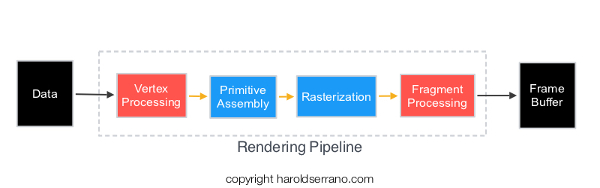
The Rendering Pipeline are the stages that vertices must go through before appearing on the screen of your device. The GPU, not the CPU, is in charge of the rendering pipeline.

In general, the vertices of a mesh goes through the following stages in a rendering pipeline:

  • Vertex Processing
  • Primitive Assembly
  • Rasterization
  • Fragment Processing

Vertex Processing

The Vertex Processing stage processes incoming geometrical data, i.e., vertices. In this step, each vertex coordinate system is transformed by a space matrix, thus changing the vertex original coordinate system to a new coordinate system.

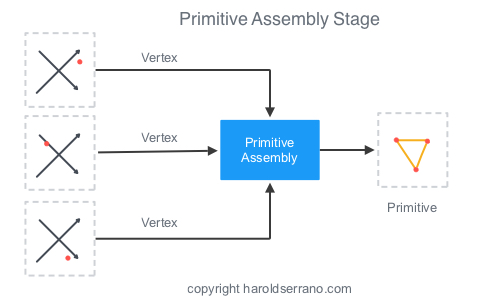
Primitive Assembly

The Primitive Assembly constructs a primitive using three processed vertices from the Vertex Processing stage.

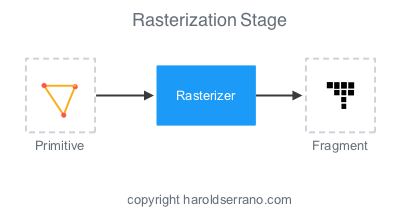
Rasterization

What you see on a screen are pixels approximating the shape of a primitive. This approximation occurs in the Rasterization stage. In this step, pixels are tested to determine if they are inside the primitive’s perimeter. If they are not, they are discarded.

If they are within the primitive, they are taken to the next stage. The set of pixels that passed the test is called a Fragment.

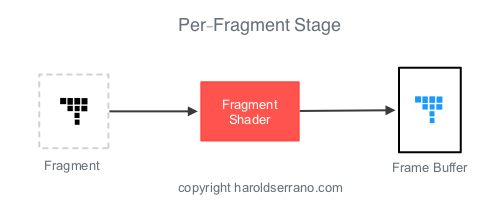
Fragment Processing

The responsibility of the Fragment Processing stage it to apply color or texture to the fragment.

Shaders

Long ago, the Rendering Pipeline was fixed. Meaning that a developer had no way to influence the outputs of any of the stages in the pipeline.

However, that is no longer the case. Today, you control the outputs of two stages in the pipeline; the Vertex Processing and Fragment Processing stages. These stages are controlled through GPU programs called "Shaders." In Metal, they are known as "Functions."

The GPU program that controls the Vertex Processing stage is known as a Vertex Shader. Whereas, the program that controls the Fragment Processing stage is known as a Fragment Shader.

Furthermore, you program these shaders with a special programming language called "Shading Languages". In OpenGL, the shading language is known as GLSL (or OpenGL Shading Language). In Metal, the shading language is called "Metal Shading Language."

Transformations

If you hate mathematics but love computer graphics, then you better start hating math a bit less. Mathematics, especially Linear Algebra, plays a huge role in computer graphics, games, graphics effects, etc.

In computer graphics, Matrices are used to transform the coordinate system of a mesh.

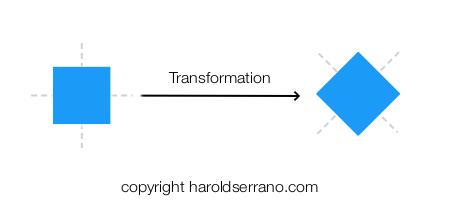
For example, to rotate a square 45 degrees as shown below requires a rotational matrix to transform the coordinate system of each vertex of the square.

Matrices are not only used to rotate a mesh, but also to create the illusion of 3D objects on a screen.

To render a 3D object, you are required to implement several transformations. For example, the coordinate space of a model is transformed by a view (camera) matrix. This new coordinate system is known as the Model-View coordinate system. And it shows the position of the model with respect to the camera.

A Projective-Perspective matrix further transforms the Model-View coordinate system, thus creating a 3D illusion. These set of transformation is known as the Model-View-Projection transformation.

Thus, if you want to display an object in 3D, the object must be transformed the by Model-View-Projection Matrix.

Attributes and Uniforms

Attributes

Elements that describe a mesh, such as vertices, are known as Attributes. Aside from vertices, Normal Vectors, and UV coordinates also define a mesh. Normal Vectors are vectors perpendicular to the vertices direction and are used to apply lighting to a model. UV coordinates are used for texturing.

An attribute is also defined as the input to a Vertex Shader (function). The Vertex Shader is the only stage that can receive attribute data from the CPU. The Fragment Shader can't receive attribute data directly from the CPU.

If the Fragment Shader needs attribute data, it must be passed down from the Vertex Shader.

Uniforms

A Vertex Shader deals with constant and non-constant data. An Attribute is data that changes per-vertex, thus non-constant. Uniforms are data that are constant during a render pass.

For example, if your mesh has six vertices, the Vertex Shader will process six different attributes during the render pass. However, it will process the same uniform data during the render pass.

Transformation matrices are usually sent as uniform data to the GPU.

Unlike attributes, both shaders can receive Uniform data.

Framebuffer

The destination of a rendering pipeline is a Framebuffer. A framebuffer contains several attachments such as Color, Depth, and Stencil attachments. However, a framebuffer can display the rendering content to a screen ONLY if a 2D array memory has been allocated and attached to a framebuffer attachment. A 2D array memory is known as a Texture image.

Frame buffer.jpeg

In Metal, you must ask the system for the next available texture which can be attached to the framebuffer.

Now that you know the basics of computer graphics, Metal or OpenGL will be a lot easier to understand. Metal and OpenGL are simply APIs that allow you to communicate with the GPU.

Click here to start using Metal.

Hope this helps

It has been two years since I started writing

Two years ago, on 12/25/2014, I wrote my first blog post. And after 170+ posts I'm still here, writing.

My first year was depressing. I hardly got any visitors. I remember that on average I was getting about 5-10 visitors a day. Like anyone, I wanted my traffic to increase, but I didn't take any marketing actions on it. I avoided using catchy headlines, nor did I use popular keywords.

I didn't have a strategy. I simply started writing and sharing what I was learning. My only requirement to write a post was "Will this post help someone?"

After a year or so, my blog traffic started to increase. I remembered being so happy when I started getting 40-50 visitors a day. By this time I had written over 100 articles, but I had never received a comment on any of my posts. The day that I received a comment I was kind of excited.

It makes me happy to see that after two years of writing and sharing my knowledge, my blog is getting more traffic. On average about 1,600 visits a month. To some of you these numbers may be insignificant, but keep in mind that when I started, I was getting about ten visitors a day.

So why did I start writing?

Three and a half years ago I was developing a game engine in obscurity. I was learning a lot from this project, and I wanted a way to express myself and let people know about my project.

I am not a social media person. And the thought of posting a picture of me working on the game engine either on Twitter or Instagram didn't go well with my personality.

Around this time, I was reading the book Show your work. Which stated the following points among others:

  • You don't have to be a genius
  • Think process, not product
  • Teach what you know

These three points encouraged me to show off my game engine. I realized that I didn't have to be a genius on game engine development to start writing about it. It made me understand that you can inspire others by showing the process of a project. And it made me realize that the whole point of social media is to educate and inform others, not to share what you ate this morning.

So I started writing about Computer Graphics, Programming and Game Engine Development.

These two years have not been easy. Many times I wanted to quit writing and shut down this blog. But I am so tired of quitting that I force myself to keep writing.

So if you want to start a blog, go for it. Don't be afraid to share your knowledge, even if you are not an expert in your field. I was not an expert when I started but I have written plenty of articles on Game Engine Development, C++ and OpenGL.

If your project is not ready to be shared, don't wait. Share it anyways. Write about the process. Someone out there will be interested in what you are doing. I began sharing the process of the game engine when the engine was a piece of nothingness.

Below is a timeline of the game engine process.

And finally teach what you know. Writing NOT Coding helped me become fluent in game engine development. If you can't teach it, then you don't understand it.

Thanks for reading.